

1. What you receive
Your purchase includes two license files. Registration is complete once both are in the specified folder. No internet connection, account sign-in or serial number entry is required; the plug-in has no registration input field.
| File | Purpose |
|---|---|
license.lic | License file |
license.email | A file containing the email address to which the license was issued—the address used at checkout. |
The two files arrive in one ZIP attachment at your checkout email address within a few minutes of payment. Double-click the ZIP to extract them. The same email includes links to the installer and this guide. The download link always provides the latest version, so use it for updates too. Keep the email.
If the email does not arrive, check your spam folder. If it is still missing, contact [email protected] with the email address used at checkout.
2. Registering your license
- Download the installer using the link in your email and install the plug-in.
- Double-click the ZIP attachment to extract it.
license.licandlicense.emailare the two files you will find. - In your DAW, open PurlShift and click the logo at the top left of the interface. In the information window, click Open folder…. The registration folder opens in Finder. If it does not exist yet, it is created at this point.
- Drag the two files from step 2 into that Finder window. Use the extracted files, not the ZIP, and keep their filenames unchanged.
- Quit your DAW completely (⌘Q), then reopen it. Closing the plug-in or DAW window is not enough. The plug-in reads the license files once when first loaded into the DAW and does not read them again until the DAW has been quit.
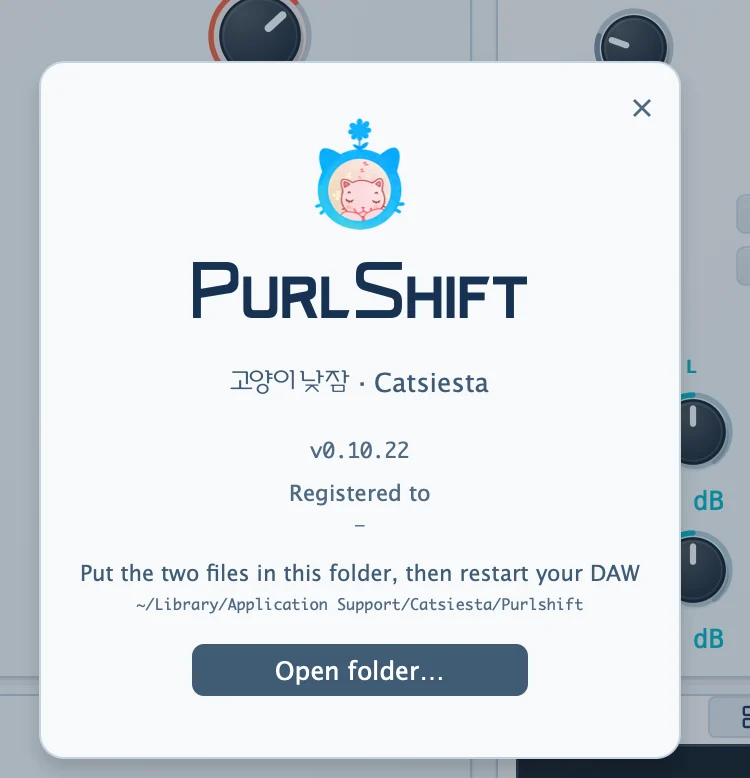
3. Checking registration
After reopening your DAW, click the logo to open the information window. If your checkout email address appears under Registered to, the plug-in has read license.email. This display does not verify license.lic, so both files must be in the same folder for PurlShift to operate correctly. Close the window with X, Esc or a click outside it.
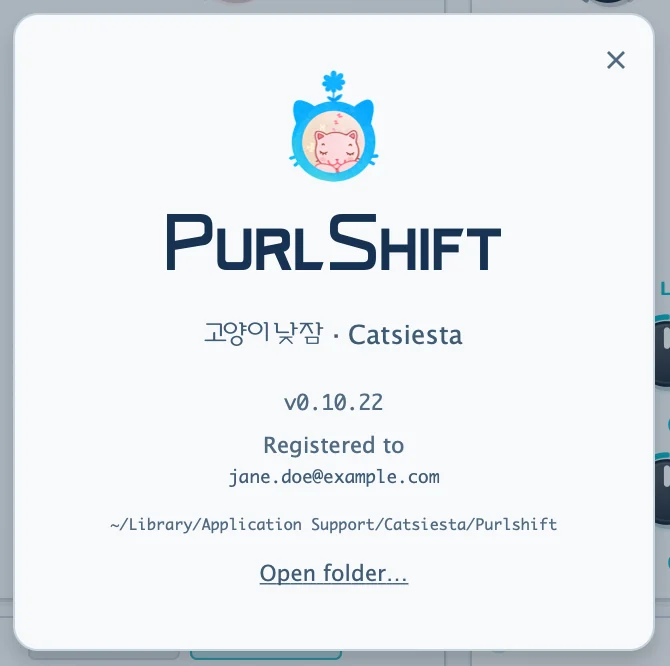
If the address is blank, check the following.
- Are both files in the registration folder? Check for suffixes such as
.txtor(1)by selecting a file in Finder and pressing ⌘I (Get Info) to see its full name. - Did you completely quit and reopen the DAW after adding the files?
- If the address is still blank, contact [email protected] with the email address used at checkout.
4. Opening the folder manually
If Open folder… does not open the folder, open it manually in Finder. The registration folder is at the path below, also shown in the information window. It is the parent of the User folder where user presets are saved.
~/Library/Application Support/CatSiesta/Purlshift/- In Finder, choose Go › Go to Folder (⇧⌘G).
- Paste the path above and press Return.
~/Libraryis normally hidden in Finder, so this is the quickest way to open it. - If Finder says the folder does not exist, go to
~/Library/Application Support/and create aCatSiestafolder, then aPurlshiftfolder inside it. Match the spelling and capitalization exactly. - Place both files there, then quit and reopen the DAW completely, as in section 2, steps 4 and 5.
5. Things to avoid
- Do not edit the contents of
license.email. Its email address must match the address to which the license was issued. - Do not rename the files or move them to another folder.
- Do not share or publish the license files. The license is for your own use; see the Terms of Use.
6. Other situations
- Keep a copy of the ZIP on another storage device or in the cloud. Without the files, you cannot register PurlShift.
- How to request replacement files: [To be decided]
- If your checkout email address changes: [To be decided]
- Use on multiple computers: you may use the plug-in on up to three computers you own or control (Terms of Use, section 4). Register each computer using the steps in section 2.
- No trial version is available.